Blog

  • Enabling public key authentication

    Using public key authentication for services like ssh and scp is easy.

    • Generate your keys (on the client)
    • Deploy the public key to the server
    • Authenticate automatically

    The details are tricky.

    • WinSCP needs another format.
    • OpenSSH format is not recognized by all tools.
    • You have two keys, how do you specify which to use?

    There are a bunch of commands, parameters and tools to overcome this problems and I want to explain them in this post.

    After working through this tutorial it should not be a problem anymore to

    • Generate a key
    • Use it with services like GitHub, GitLab, Jenkins, Azure DevOps or others.
    • Connect to hosts without a password.

    Generate the keys

    Windows now also comes with the required tools and because of this I am going to show the commands without explaining how to get the tools on older versions of windows.

    The tool for the job is ssh-keygen. But wait, there are a few parameters that should be set to generate a well compatible key.

    ssh-keygen -b 4096 -t rsa -N "" -f id_rsa_test

    This command will generate the key pair into the “.ssh” folder inside the users home folder with the filenames set to “id_rsa_test” for the private key and “id_rsa_test.pub” for the public key. It will use the RSA algorithm with 4096 bits and will store the key without a passphrase.

    If the command is used with PowerShell, the “-N” command line parameter has to be changed:

    ssh-keygen -b 4096 -t rsa -N '""' -f id_rsa_test

    The files are named “id_rsa_test” to prevent possible overwriting of a existing key. If there is no key present, the “-f” parameter can be omitted. In this case the keys are generated in the folder the user is in at the moment. The default folder for ssh keys is the subfolder “.ssh” in the home directory:

    CMD: %UserProfile%\.ssh
    Powershell: $env:USERPROFILE\.ssh
    Bash: ~/.ssh

    Use the keys

    For public key authentication the content of the file “id_rsa_test.pub” is distributed to the services and hosts the authentication should work against. The content looks similar to this:

    ssh-rsa AAAAB3 ... A1TQ== user@hostname

    For example if used to authenticate a ssh user against a Linux machine this key is inserted into the file

    ~/.ssh/authorized_keys

    of the targeted user. A connection without a password can then be made with the following command.

    ssh target_user@target_host

    To use the key for GitHub authentication follow the next steps to add the public key:
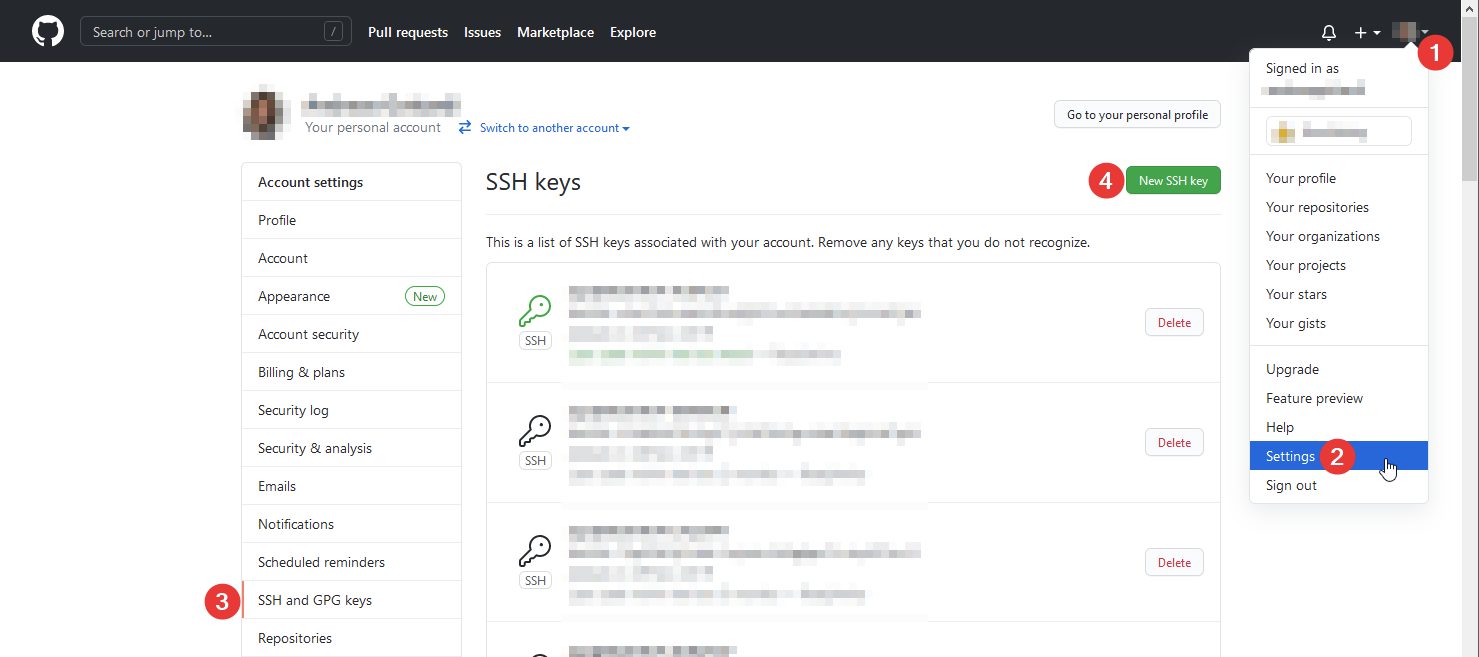
    This will lead to a form where the public key can be pasted into. After saving remote repository actions can be done via ssh without entering a password.

    There are plenty of other systems using public key authentication. The process of generating a key and distributing the public key to the system is always the same.

    Convert different formats

    It is possible, that the “ssh-keygen” command generates a key in the form

    -----BEGIN OPENSSH PRIVATE KEY-----
    b3BlbnNzaC1rZXktdjEAAAAABG5vbmUAAAAEbm9uZQAAAAAAAAABAAABFwAAAAdzc2gtcn
    ...
    cDsAEG0AAknP6m2PmwAAAA9hZ29AU0VSVkVSLTAwMDcBAg==
    -----END OPENSSH PRIVATE KEY-----

    instead of

    -----BEGIN RSA PRIVATE KEY-----
    MIIEowIBAAKCAQEAw6mBu3IALusG9yM3mkhhkNle9XWDXSuPn9OD56A7/75jyvSt
    ...
    bEQNA6lH/Mwf99lci4E0U/8L+zuB51ANpTg3eVGYauHEt4UnzDKl
    -----END RSA PRIVATE KEY-----

    This key can be easily converted using the following command.

    ssh-keygen -m pem -f <path/to/keyfile>

    This replaces the OpenSSH formatted key with a RSA key.

    Generate a PuTTY Private Key File

    Tools like WinSCP and PuTTY require a specific key format. This can be generated using a tool called “PuTTYgen” which comes with the PuTTY installation package. Start the program and import your generated private key:
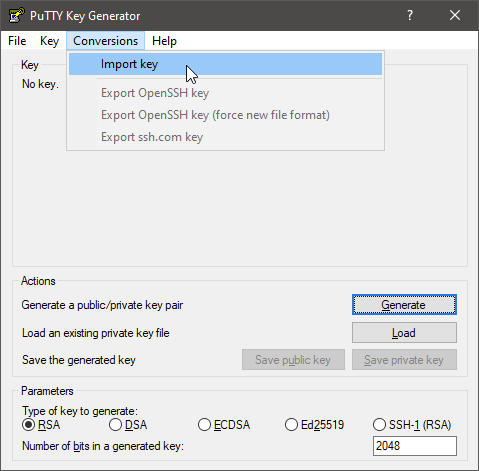
    When imported select “Save private key”:
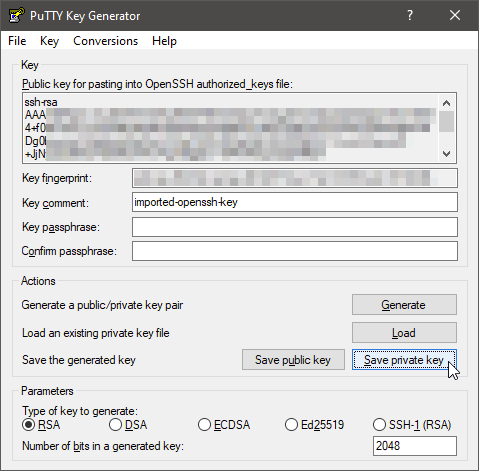
    In this example no passphrase is specified. So you can confirm the next dialog with “Yes”.
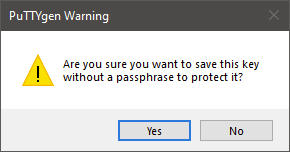
    A file selection dialog will open and you can save the putty private key file. It is recommended to save it in the same folder as the existing private key.

    The key can be configured on a per host basis directly in PuTTY.
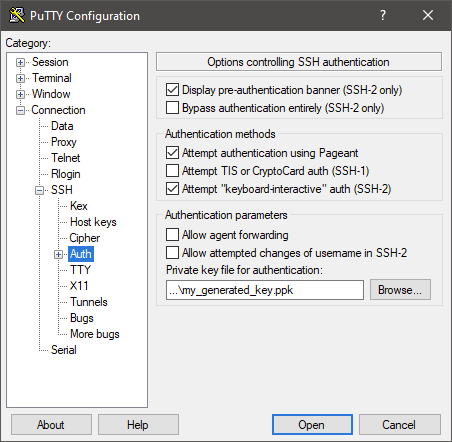
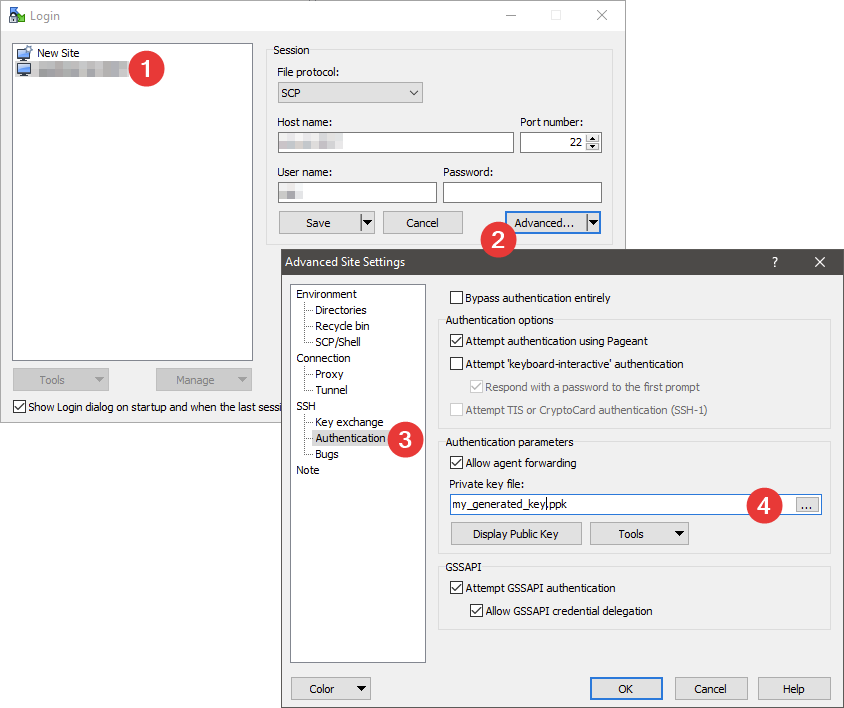
    In WinSCP it is similar to the configuration in PuTTY: Select the host, click on “Edit” and “Advanced” and in the new dialog select “SSH” – “Authentication”. Select you .ppk file.
    Specify key to use in ssh

    This is important when there are several keys for different hosts present on one system.

    ssh -i ~/path/to/private/key/file user@host

    With this command the key file to be used is specified.

  • Making applications available in non-login shells

    Assuming commands should be executed on a remote computer using ssh these commands have to be available in the PATH variable. This is not a problem with locally installed tools and commands on Linux systems but when custom programs should be executed this can get a little bit tricky.

    When you log in as a user the full profile is loaded. This means all defined PATH variables are set. But when a command is executed via ssh the profile is not loaded completely. The following command shows how this works:

    ssh user@host 'echo "Hello World"'
    Hello World

    This gets executed without a problem, but as soon as a third party application, like Java, is launched, something like this could appear:

    ssh user@host 'java --version'
    bash: java: Command not found.

    The problem here is, that the path to the Java executable is not in the global Path and thus the executable can not be found and executed. So how do you make it look like this?

    ssh user@host 'java --version'
    openjdk 11.0.10 2021-01-19 LTS
    OpenJDK Runtime Environment Zulu11.45+27-CA (build 11.0.10+9-LTS)
    OpenJDK 64-Bit Server VM Zulu11.45+27-CA (build 11.0.10+9-LTS, mixed mode)

    The trick is in the file

    /etc/bash.bashrc

    In this file you can find the bold line.

    export JAVA_HOME=/opt/java/stable
    export PATH=$JAVA_HOME/bin:$PATH
    
    # If not running interactively, don't do anything
    [ -z "$PS1" ] && return

    Everything that should also be loaded in non-interactive shells, like the one used with the ssh command, must be placed above this line.

    In this case JAVA_HOME is set to a custom Java installation (/opt/java/stable which is a symlink to a directory containing the application) and then this path is used in the global PATH variable.

  • Improve code quality in Eclipse

    Source code is volatile and when a team is working on the same code it can get let’s say “messy”. Especially when unused stuff is not removed and obsolete practices are applied. And to be honest, when the task of changing the logic is done I don’t start cleaning up my code. Fortunately there is support to take care of that during the coding process. Because I am working mainly with Eclipse I will show a few features of this particular IDE that keep the code clean. I will only show the Java formatter here, but it will give you a basic idea about the functionality and the practices can be applied to other languages as well.

    Why is it useful to define a company wide code style?

    Easier to read code

    When code has the same style it makes it easier for developers to read the code of others. A new developer does not have to worry to do something wrong because the whole code style and formatting is defined in the IDE during setup.

    Only the real changes are committed

    Imagine changing one line of code, saving the file and because you are using a formatter and the other developer doesn’t the whole file gets formatted. Thus all the formatting changes get committed.

    Commit changes

    Reduced Warnings

    Before …

    Formatter configuration dialog

    … and after saving:

    Formatter configuration dialog

    Unused imports are removed automatically. This makes code easier to read, reduces code size and is in general good practice.

    Formatter

    Formatters do exactly, what the name says: They format your code. The formatter gets started manually by pressing [Crtl]+[Shift]+[F] when a source file is opened. Then the indents, spaces and syntax gets cleaned up. Formatters are configured in the Eclipse preferences for several languages under the following path “<Language (i.e. Java)> – Code Style – Formatter”:

    Formatter configuration dialog

    Starting from this point some organizational tasks can be done:

    • Create and edit formatters
    • Import- and export formatter definitions (as xml files)
    • Open the configuration dialog

    I don’t go too much into detail here, but the code formatter is the place to define code conventions, guidelines and style. This can be done very detailed. And multiple profiles can be defined, ex- and imported.

    Formatter main window

    Temporary switch off formatter

    Let’s assume you have a source code like the following:

    String xml = ""
    + "<?xml version=\"1.0\" encoding=\"UTF-8\"?>\n"
    + "<note>\n"
    + " <to>You</to>\n"
    + " <from>Me</from>\n"
    + " <heading>Reminder</heading>\n"
    + " <body>About the task.</body>\n"
    + "</note>";

    Now the formatter would format it to this:

    String xml = "" + "<?xml version=\"1.0\" encoding=\"UTF-8\"?>\n" + "<note>\n" + " <to>You</to>\n"
    + " <from>Me</from>\n" + " <heading>Reminder</heading>\n" + " <body>About the task.</body>\n"
    + "</note>";

    But this is not readable anymore. To avoid this the formatter offers a special comment to temporary disable it:

    //@formatter:off
    String xml = ""
    + "<?xml version=\"1.0\" encoding=\"UTF-8\"?>\n"
    + "<note>\n"
    + " <to>You</to>\n"
    + " <from>Me</from>\n"
    + " <heading>Reminder</heading>\n"
    + " <body>About the task.</body>\n"
    + "</note>";
    //@formatter:on

    Now, even when formatting is applied, the marked code parts are left as they are.

    Save actions

    Formatters are great, but they have to be applied every time manually by selecting the appropriate menu item. Fortunately there are “Save actions”. These actions can apply formatters automatically when saving a file.

    Save actions dialog

    SonarLint

    Sonarlint analyzes the source code during coding, shows categorized hints and provides improvements. The tool is available as plugin for Eclipse.

    SonarLint provides improvement dialogs when code is not best practice.

    Improvement hint dialog

    When the description is opened text explaining the problem and offering improvements is shown.

    Improvement screen

    Conclusion

    I am working for some time now with these improvements and they made my code better and taught me better programming. If ones goal is to get better in coding and write code that is more stable and secure these tools can provide good support.

    Source: https://github.com/andreasgottardi/concepts/tree/master/codequality