Blog

  • Securing your private keys and preventing others from using them

    I have to access a lot of server remotely and for this I am using public/private key authentication. This means basically that I have a key pair, consisting of public and private key, on my computers that identifies me. If I need access to a remote machine I send my public key to the administrator or configure it on the remote machine myself if it is managed my me. This means if someone would get access to my key, for example by accessing my computer with a Live-Linux, this person could access the servers I have access to.

    Because of that I see it as my responsibility to take precautions to keep my keys secure and prevent others to access them, even if they have access to my computer (for example if my computer is at the repair shop or unguided in the office).

    To achieve this task I take two possible ways into consideration:

    1. Password on your private key file.
    2. Disk encryption.

    Password

    If the private key is protected with a password it is basically useless without it. It can not be used to access the servers because the connection is blocked. This is basically using your own password to connect to a remote servers without telling it to the administrators. This method has one drawback:

    • The password has to be entered every time when connecting or at least when starting an agent software that provides the keys during a session.

    Disc encryption

    Disk encryption is the second method to prevent someone from getting your keys by accessing the disk directly from a third party operating system. It is supported by major operating systems and also secures other data on the hard drive. But there are also drawbacks:

    • A pin code has to be entered when starting the system.
    • Performance is worse because data has to be decrypted during runtime.
    • When the pin is forgotten the data is basically lost.
    • The pin offers less security than a complex password on the private key.

    Conclusion

    Both methods help to prevent fraudulent access to the private key of a user. From my point of view the password offers more convenience and security and does not come with the risk of completely losing data in case the pin is lost. If the password is forgotten a copy of the key could be stored on a USB drive or CD in safe as a backup. Even a print out could be stored and typed back in.

    I will go with the password secured key from now on and will store a copy at home. On machines, that are accessible by others I will use the password protected key. On machines with no public access, for example at home, I will use the password less version of the key.

  • Get full path of executable in PATH variable

    Ever wanted to get the full path of an executable that is located in the global PATH variable? Maybe for configuration purposes? Take a look at the following snippet. It may help you:

    (Get-Command -Name @("code.cmd")).Path | ForEach-Object {
    	Write-Host "$(([System.IO.DirectoryInfo]$_).Parent.FullName)"
    }

    This will show the full path of the parent folder containing “code.cmd”. The term “code.cmd” could be replaced with “java”, “cmd”, “powershell” or whatever is configured in the global path. It could be useful to find out what version of a certain framework or program is used for example.

  • Install Visual Studio Code

    I think it is time to show real quick how to install Visual Studio Code because most of my work is done with this editor.

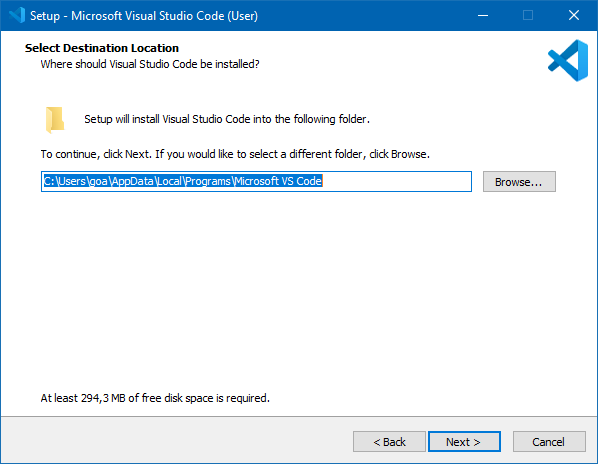
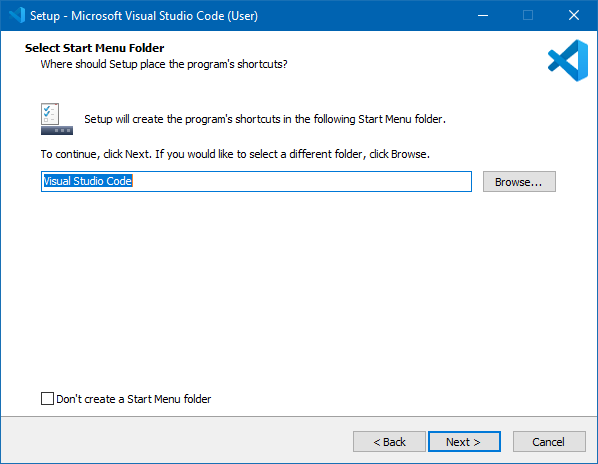
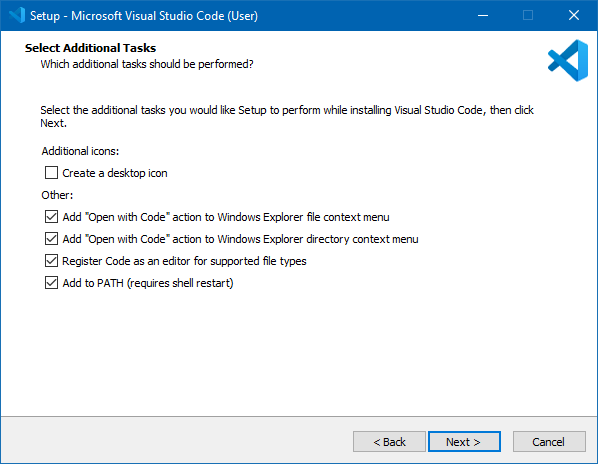
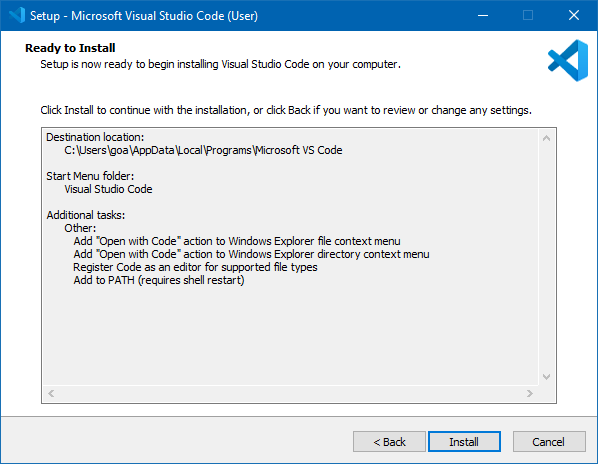
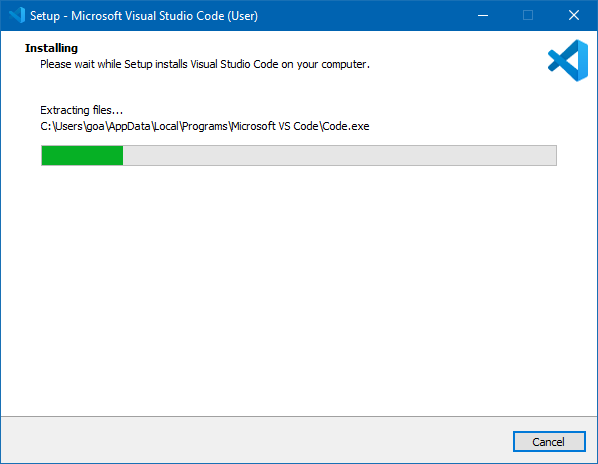
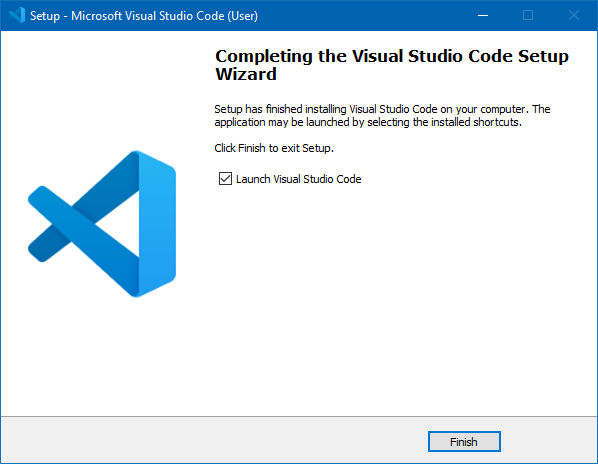
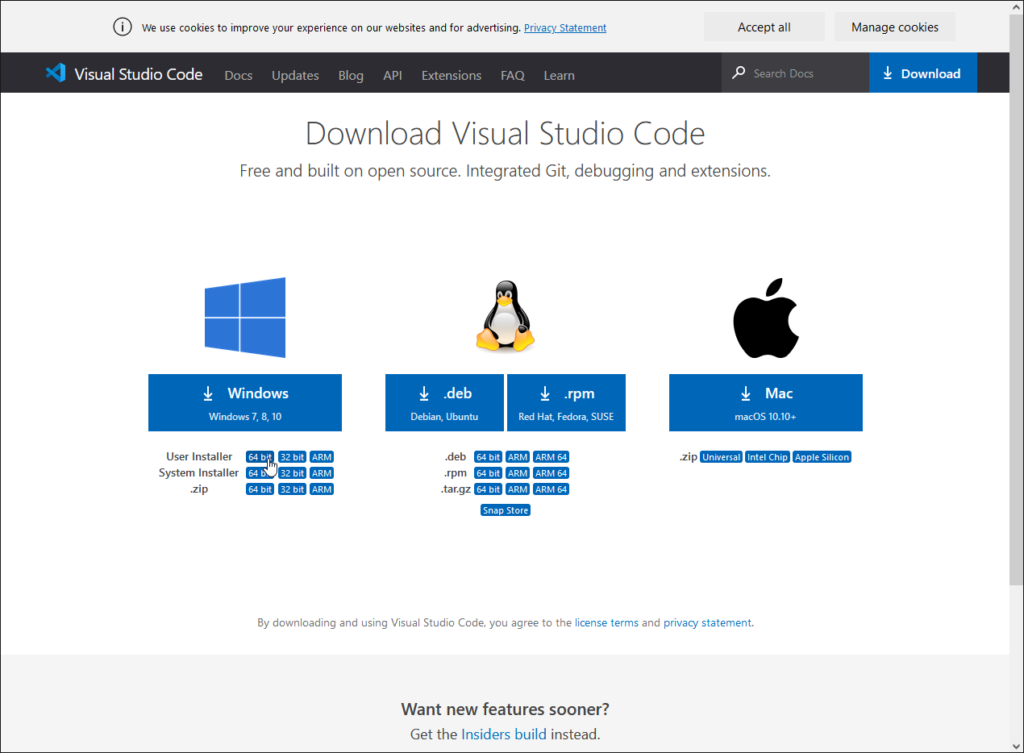
    It can be downloaded from the product page. After this is done just follow the screenshots and you are good to go. I recommend to use the user installer, which can be installed even if there are no administration rights available.

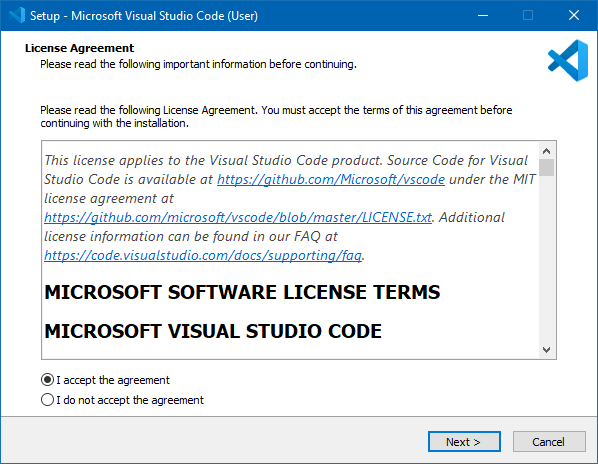
    Just start the downloaded setup and follow the steps:

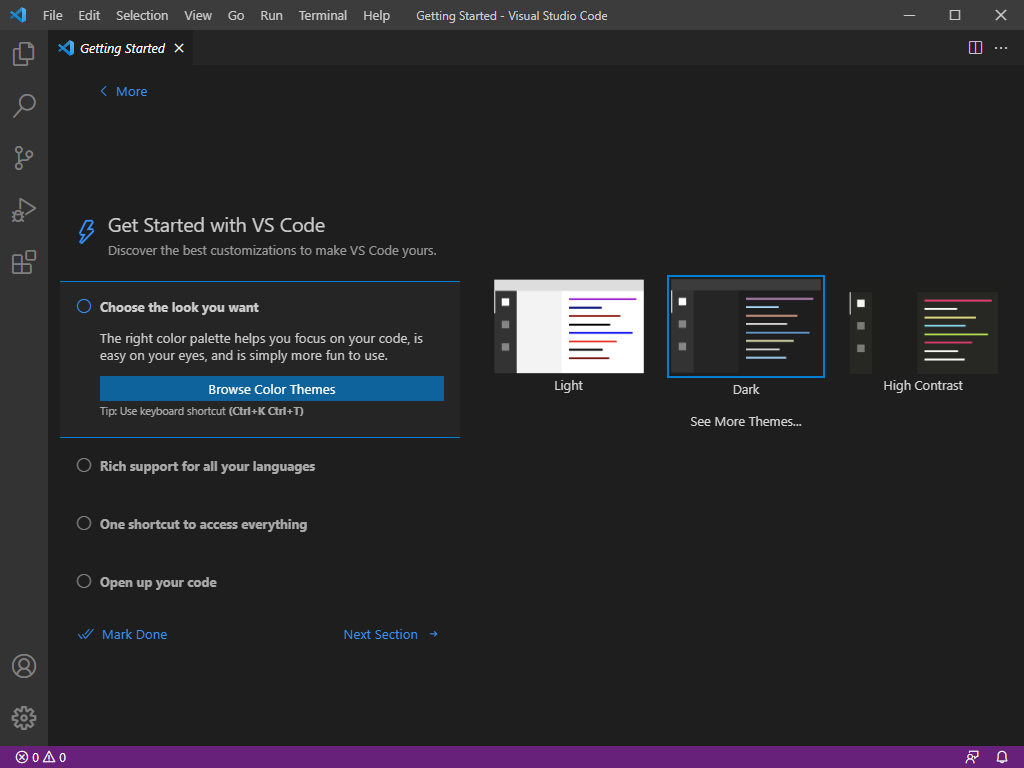
    After that the program should be started.

  • Installing Git on Windows

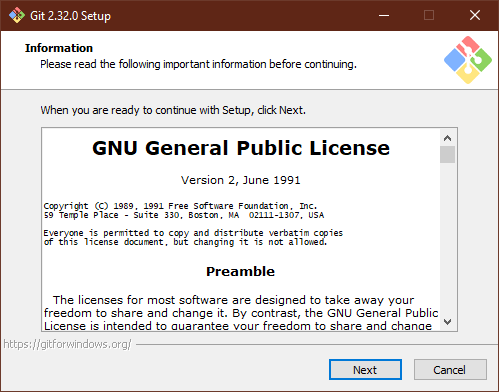
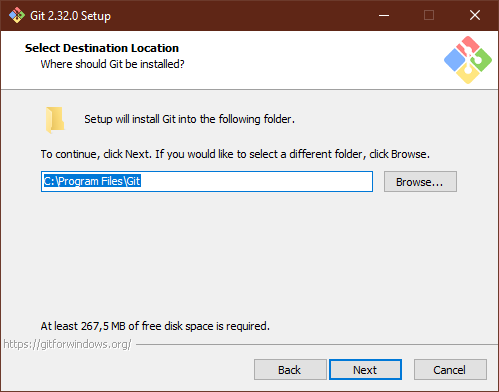
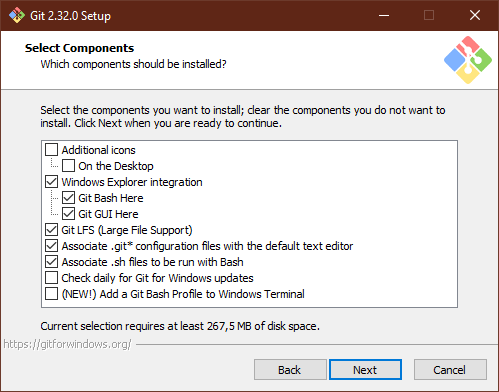
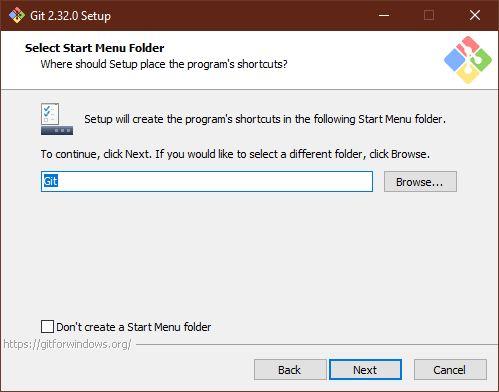
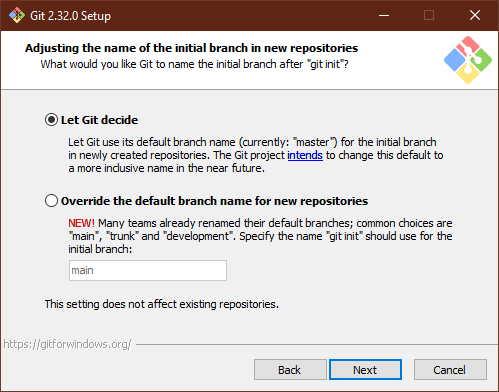
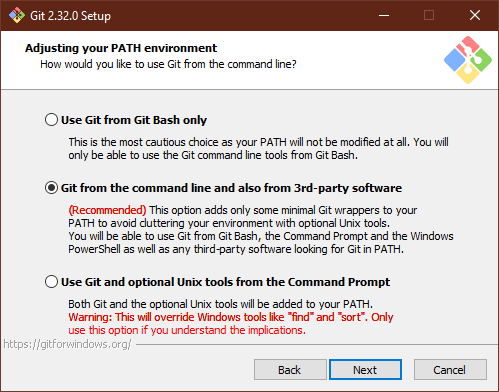
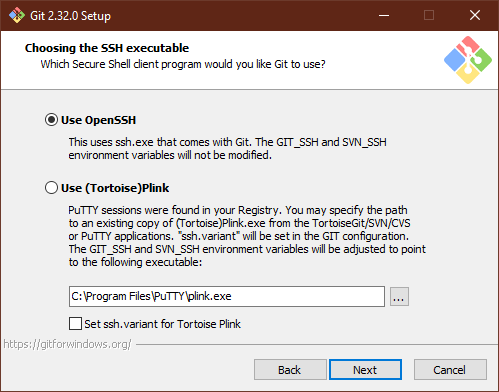
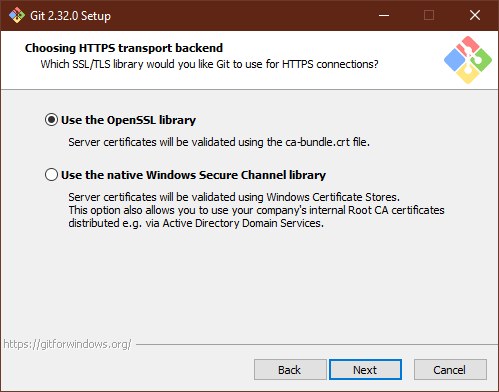
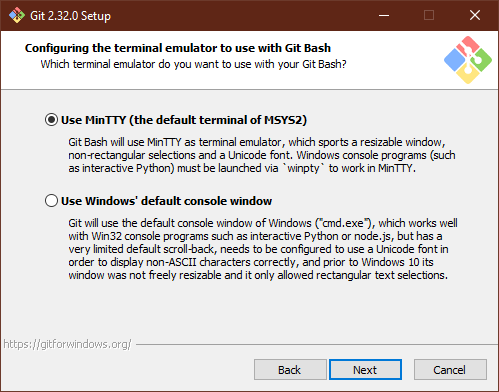
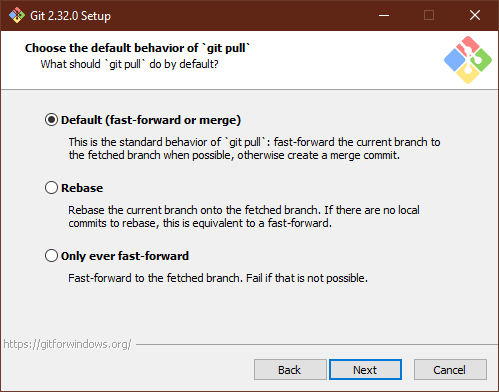
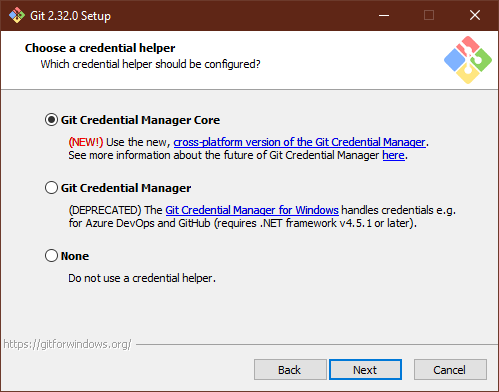
    I tried to sum up the installation options that I use and that make most sense to me. If course they are arguable and I can explain why I use them and why they make sense from my point of view.

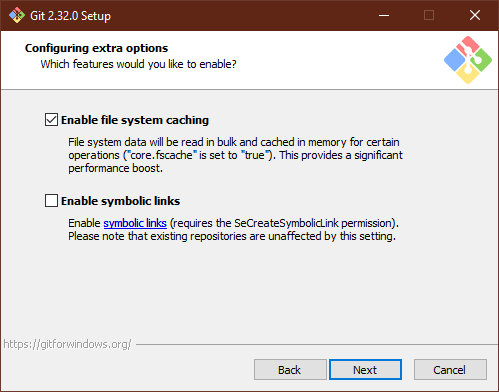
    Git for Windows can be downloaded here. I have made the screenshots with the current version from mid of June 2021. The installation options change and I will try to keep this tutorial up to day. If there are new options not covered in this tutorial one has to do some research what the options mean and what is the best setting.

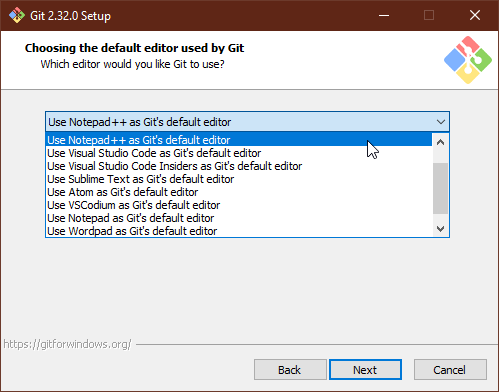
    Here the preferred editor can be selected. If the installed editors are unknown, just use “Notepad”. I use “Notepad++” and “Vim” (if installed).

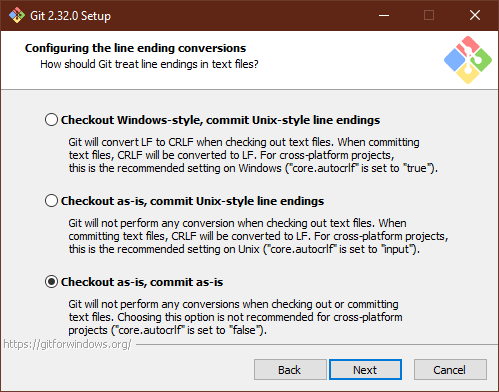
    I always use “Checkout as-is, commit as-is” because I don’t like the line endings rewritten. I work between Linux and Windows and this can lead to some annoying problems, for example when writing files on Windows for Linux.

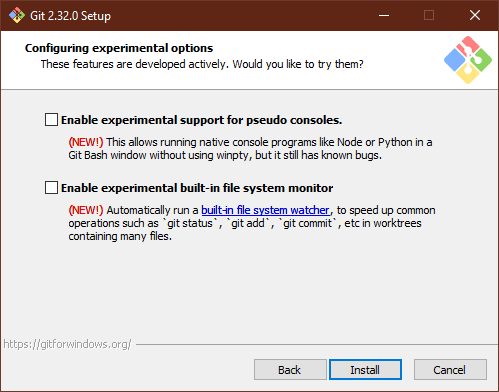
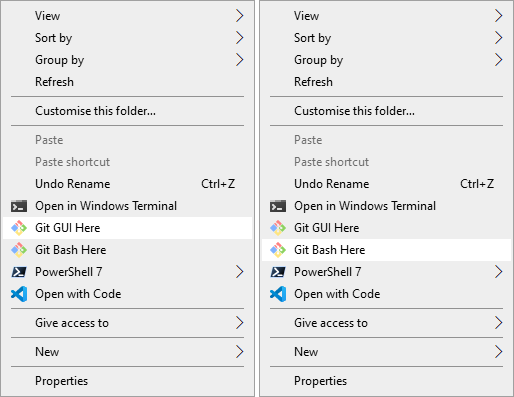
    After selecting “Install” the installation process will start and the setup can then be closed as soon as the this is done. Git tools can then be opened in windows folders by using right click for the context menu:

  • Debugging with PowerShell

    I see a huge demand for automation even in areas that are not primarily associated with software development or IT in general. And I also see people getting more and more interested in scripting and coding to get annoying, repetitive and boring tasks done more easily and robust. There is only one drawback: Code that automates tasks wants to be written first and debugging is a big aid on the way to get things done. That is why I wrote this text: Because I think PowerShell is a powerful scripting tool and it should not be restricted to software developers only. So let’s get started.

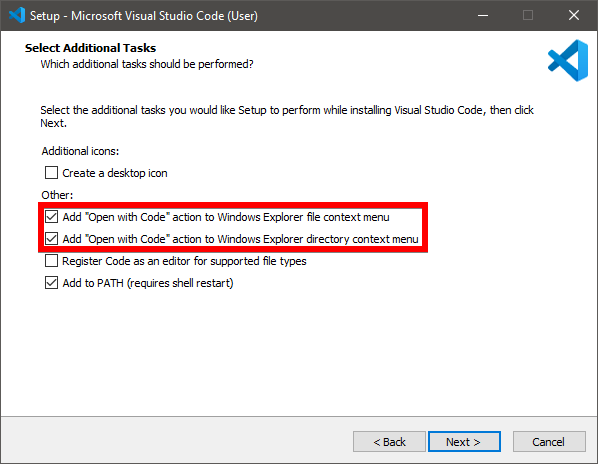
    First download and install Visual Studio Code. User Installer with 64 bit is probably the best choice if you are not sure about permissions and architecture. Just make sure to select the following two options during the installation process.

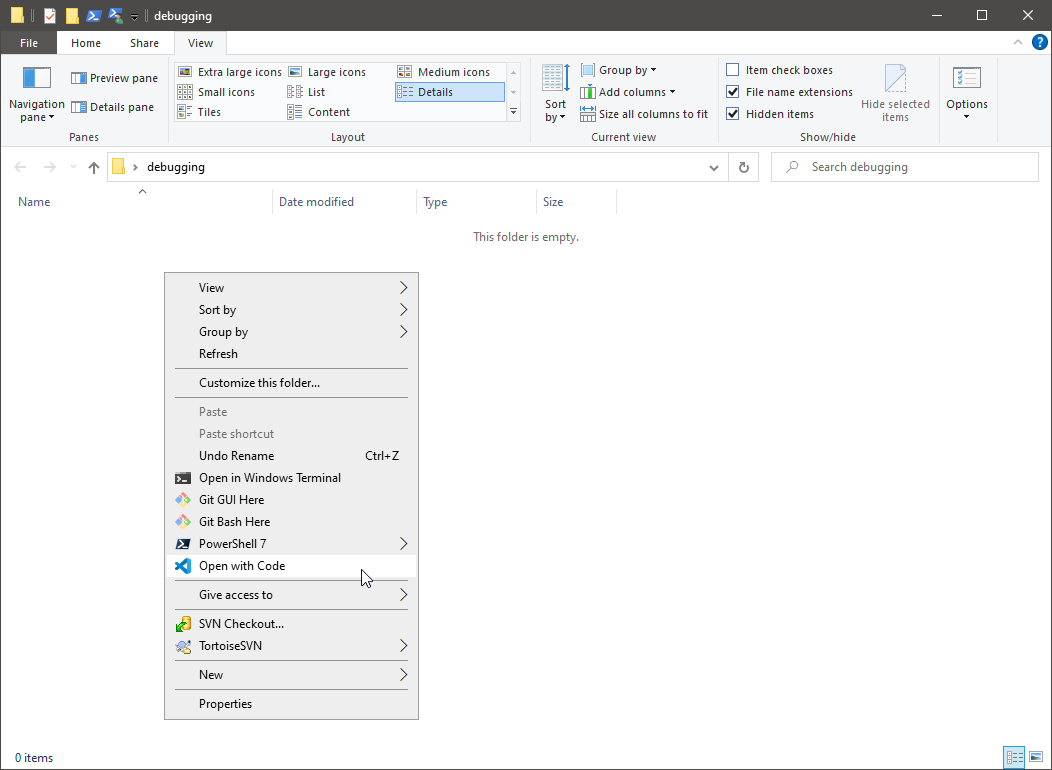
    Now create a folder somewhere on your computer. In a workspace, in the documents folder, on your desktop, wherever you will find it again. Make a right click in this folder and choose “Open with Code”.

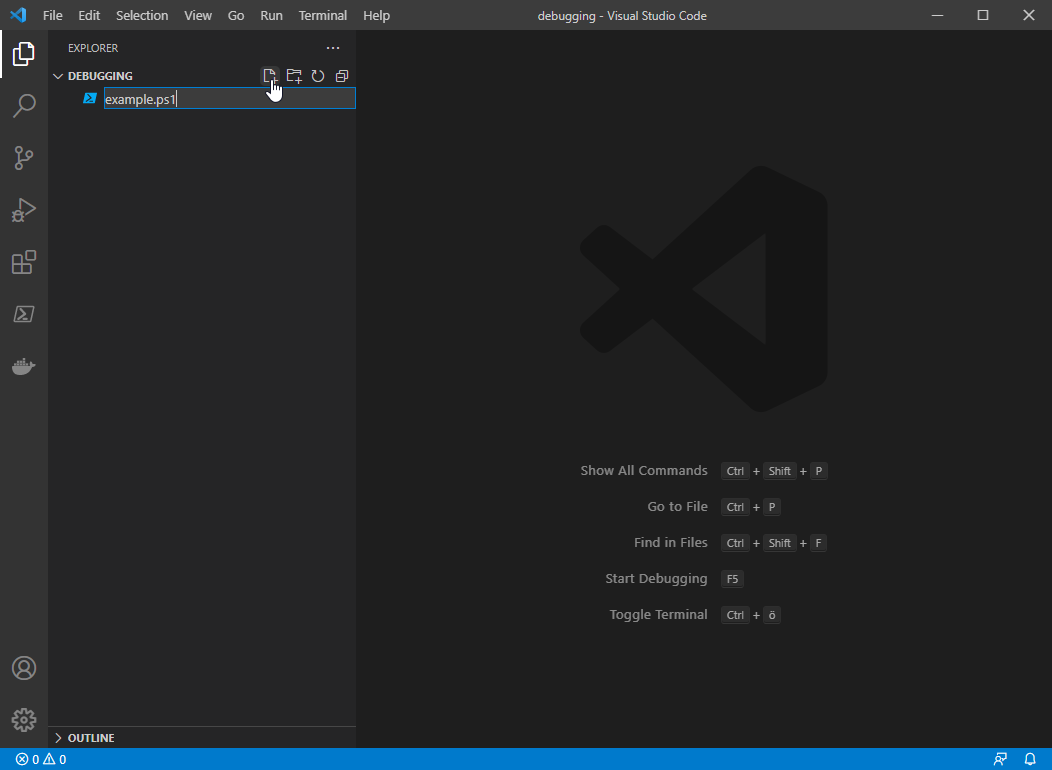
    The next thing that should open right now is the following screen.

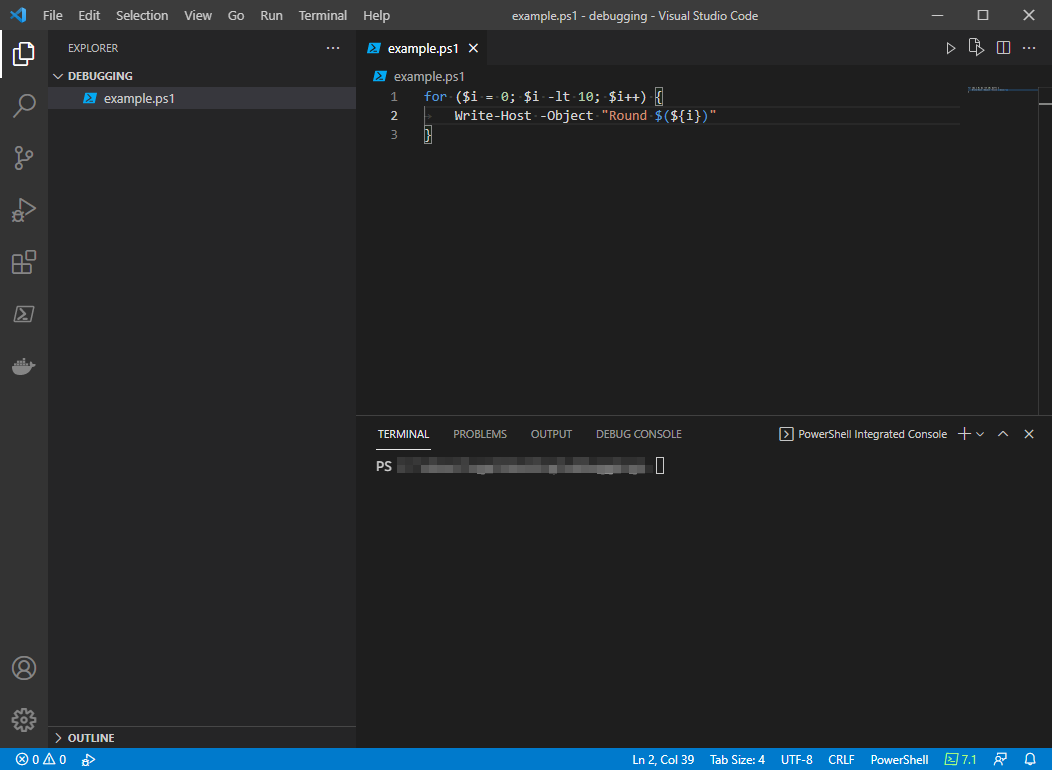
    Click on the “New File” icon and create a file called “example.ps1”. Open the file and add the following code. You can copy and paste it from here, if you want. The variable in “Round …” is written in this strange way to show you a way of embedding variables in strings. This comes in handy a lot of times and I think it is good to show it right from the start. Don’t forget to save the file.

    for ($i = 0; $i -lt 10; $i++) {
    	Write-Host -Object "Round $(${i})"
    }

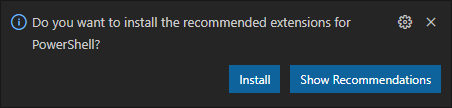
    If “VS Code” asks you to install the PowerShell extensions, say “Install”. Maybe you have to wait a few moments for everything to load.

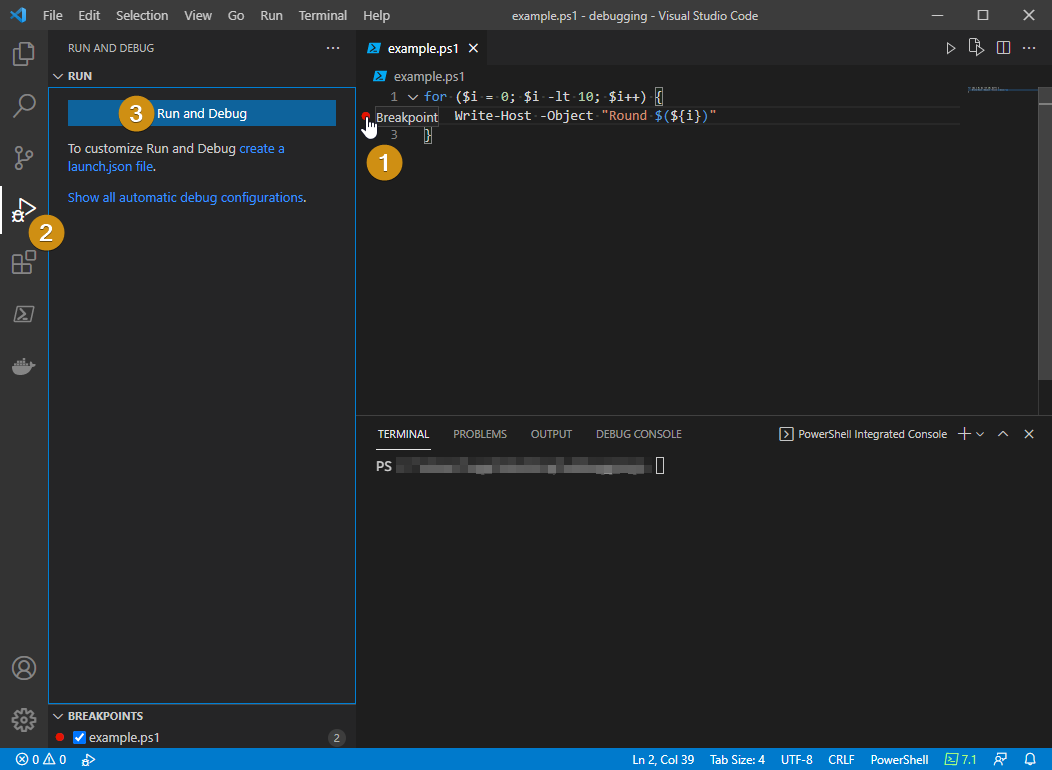
    Now set a break point on the left side of the code (1). A red dot should appear. Select the “Run and Debug” icon (2) on the left or press “Crtl+Shift+D” on your keyboard. Then choose “Run and Debug” (3) in the sidebar.

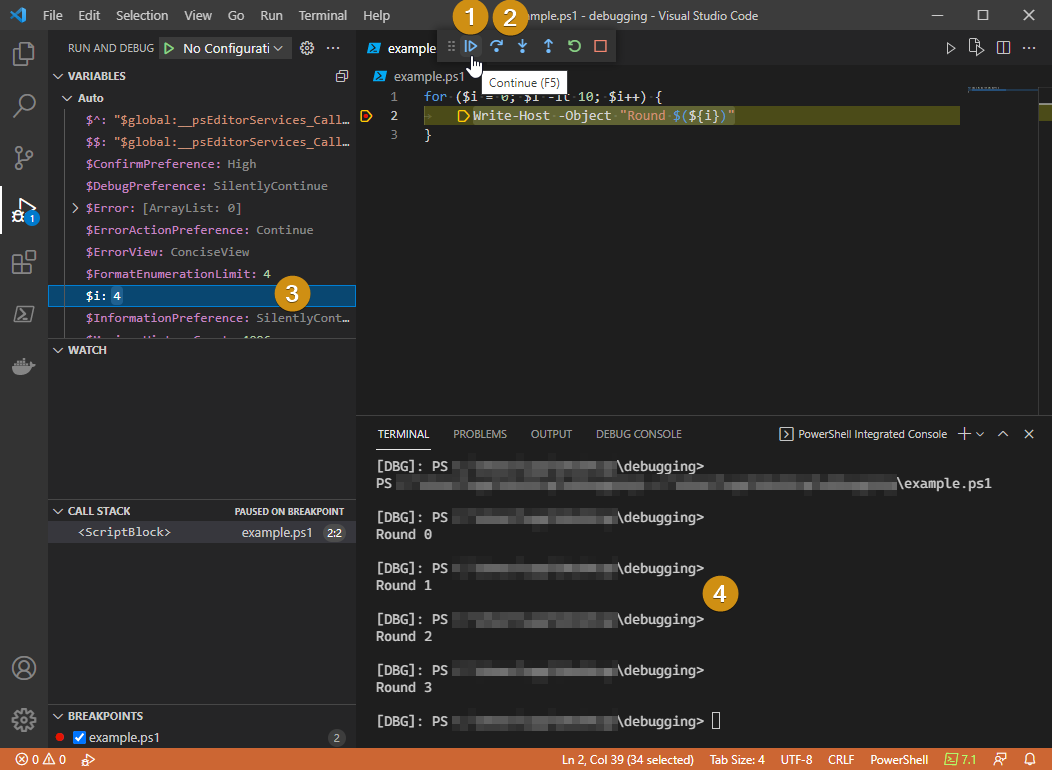
    Now the PowerShell code should run and stop at the break point:

    To continue running the code select (1). To go over the code step by step choose (2). You can inspect the variables used in the code (in this case it is “$i”) on the left side or by hovering with the mouse over it in the code. The console output is on the bottom (4).

    Small addition: If you have a big script with a lot of code and you loose track of all your break points, meaning your code stops a lot of time and this gets annoying, you can see a list of breakpoints on the bottom left of the window.

    I hope this helps some people. It sure helped me a lot and made my life much easier. Especially when I remember back writing scripts with the old CMD/Batch syntax. This feels like stone age compared to PowerShell 🙂

  • Creating network bridges without “bridge-utils”

    The following network definition cost me some time. I read in an article that the package “bridge-utils” is deprecated and is not required anymore to create network bridges under Debian and it’s derivatives.

    Let’s start with the code because that’s what I would be interested in, if I was looking for a solution.

    Code

    Just replace the addresses marked with “<…>”, store the file in “/etc/network/interfaces” and you’re good to go.

    source /etc/network/interfaces.d/*
    
    auto lo br0 eth0
    
    iface lo inet loopback
            up      ip link add br0 type bridge || true
            up      ip link add br1 type bridge || true
    
    iface br0 inet static
            address <static ipv4 address>
            netmask 255.255.255.0
            gateway <ipv4 gateway address>
    
            up      ip link set br0 type bridge stp_state 1
            up      ip link set br0 type bridge forward_delay 200
    
    iface br0 inet6 static
            address <static ipv6 address>
            netmask 64
            gateway <ipv6 gateway address>
    
    iface eth0 inet manual
            pre-up          ip link set eth0 master br0
            post-down       ip link set eth0 nomaster
    
    iface eth0 inet6 manual

    Explanation

    Initialization of the loopback adapter is “misused” to initialize the bridge because the looback adapter is started first.

    Before “eth0” is started it is attached to the bridge.

    The bridge is configured when it is up. This is done in the lines “up ip link set …”

    Thus I have to say that I am not 100% sure if this configuration is correct. For example most tutorials say to configure “forward_delay” with a value of “2”. But this does not work and the command always tells me, that the value 2 is out of range. “200” was the lowest I could go without getting an error.

    Conclusion

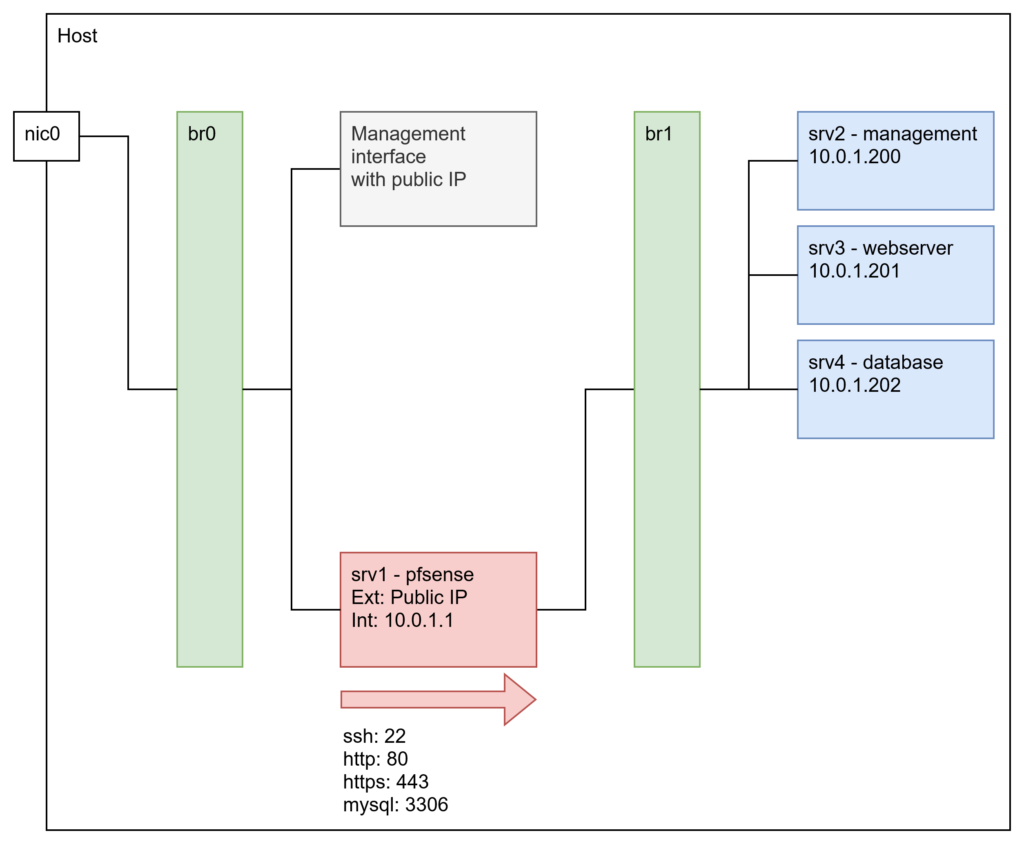
    Bridges are a great way to virtualize network traffic on a virtual machine. I have used it to set up three servers with multiple virtual machines and organize the traffic using a pfSense instance also running in a virtual machine. Basically something like:

    The firewall then NATs the required ports to the corresponding machines.

  • Generating a less problematic public/private key file

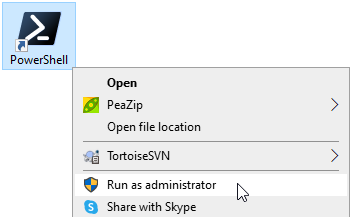
    To use this tutorial OpenSSH has to be installed on Windows. This can be easily done with the following command. To execute it, PowerShell has to be started as administrator:

    Get-WindowsCapability -Online | ? Name -like 'OpenSSH.Client*' | ForEach-Object { if($_.State -EQ "NotPresent"){ Add-WindowsCapability -Online -Name $_.Name } }

    I had problems with key files in the OpenSSH format:

    -----BEGIN OPENSSH PRIVATE KEY-----
    b3BlbnNzaC1rZXktdjEAAAAABG5vbmUAAAAEbm9uZQAAAAAAAAABAAACFwAAAAdzc2gtcn
    ... ... ...
    aknUIaQ4oLEAAAATYWdvQERFU0tUT1AtM1VFRkMwNw==
    -----END OPENSSH PRIVATE KEY-----
    

    These files are created when using the plain “ssh-keygen” command:

    ssh-keygen

    I was, for example, not able to connect Netbeans to a remote git repository. It would just show me a password input and would not connect.

    It worked only when creating my key with the following command:

    ssh-keygen -m pem

    Which created a key that looked like this:

    -----BEGIN RSA PRIVATE KEY-----
    MIIG5AIBAAKCAYEA0jMI2eXJTx05Df7SxhYQUXNaDkmIZw8BQWtuM7QpGT3fL8gS
    ... ... ...
    H+D6fxp+aV+iqFmcDkB69+21r8WX246gHPHpHa4xYF1Z7UwzMhF+Zg==
    -----END RSA PRIVATE KEY-----

    When pasting the public counterpart, stored in “id_rsa.pub” into the authorized_keys file on the server, the connection could be established.

  • Create a simple .NET core library

    In my last post I summed up my Azure DevOps setup at home. When the machine is running, the application is set up and the services are started the first tasks can be added. In this post I want to show how to create a simple solution that offers the following functionality.

    • A simple library written in C# with basic functionality that can be extended easily.
    • NUnit tests to implement test functionality. This helps improving code quality and prevents the library from getting published with errors.
    • A file with Azure DevOps definitions called “azure-pipelines.yml”. This defines what the Azure DevOps server should do.
    • A “NuGet.config” file to specify the feed the generated artifact (the .nupkg file) gets pushed to.

    This can be seen as boilerplate. As soon as the library project is set up, the builds run through and the tests are executed everything else is copy, paste and good old programming. This means: The pipeline and deployment setup is implemented with a very simple projects which reduces the possible sources of errors and it can easily be tested. As soon as this is done the real development can start with little to no errors on the DevOps side. The following script just needs .NET core installed or at least the “dotnet” executable in the PATH. It creates the the solution including a library- and a test project. Additionally a example NuGet.config and a azure-pipeline.yml definition are created.

    @echo off
    
    set SolutionName=Example.Solution
    set LibraryName=Example.Library
    set TestsName=Example.Tests
    set DevOpsUrl=https://devops.example.com
    set DevOpsSpace=MySpace
    set DevOpsProj=MyProj
    set NuGetBaseUrl=%DevOpsUrl%/%DevOpsSpace%/%DevOpsProj%
    set RepoAlias=MyRepo
    
    dotnet new sln -o %SolutionName%
    dotnet new classlib -o %SolutionName%\%LibraryName%
    dotnet new nunit -o %SolutionName%\%TestsName%
    
    dotnet sln %SolutionName%\%SolutionName%.sln^
    	add %SolutionName%\%LibraryName%\%LibraryName%.csproj
    	
    dotnet sln %SolutionName%\%SolutionName%.sln^
    	add %SolutionName%\%TestsName%\%TestsName%.csproj
    
    dotnet add %SolutionName%\%TestsName%\%TestsName%.csproj^
    	reference %SolutionName%\%LibraryName%
    
    set CLASSFILE1=%SolutionName%\%LibraryName%\Class1.cs
    
    echo using System;>%CLASSFILE1%
    echo namespace Example.Library>>%CLASSFILE1%
    echo {>>%CLASSFILE1%
    echo     public class Class1>>%CLASSFILE1%
    echo     {>>%CLASSFILE1%
    echo         public static int GetValue() { return 4711; }>>%CLASSFILE1%
    echo     }>>%CLASSFILE1%
    echo }>>%CLASSFILE1%
    
    set UNITTEST1=%SolutionName%\%TestsName%\UnitTest1.cs
    
    echo using NUnit.Framework;>%UNITTEST1%
    echo using Example.Library;>>%UNITTEST1%
    echo namespace Example.Tests>>%UNITTEST1%
    echo {>>%UNITTEST1%
    echo     public class UnitTest1>>%UNITTEST1%
    echo     {>>%UNITTEST1%
    echo         [SetUp]>>%UNITTEST1%
    echo         public void Setup()>>%UNITTEST1%
    echo         {>>%UNITTEST1%
    echo         }>>%UNITTEST1%
    echo         [Test]>>%UNITTEST1%
    echo         public void Test1()>>%UNITTEST1%
    echo         {>>%UNITTEST1%
    echo             Assert.AreEqual(4711, Class1.GetValue());>>%UNITTEST1%
    echo         }>>%UNITTEST1%
    echo     }>>%UNITTEST1%
    echo }>>%UNITTEST1%
    
    set NUGETCONFIG=%SolutionName%\NuGet.config
    
    echo ^<?xml version="1.0" encoding="utf-8"?^>>%NUGETCONFIG%
    echo ^<configuration^>>>%NUGETCONFIG%
    echo   ^<packageSources^>>>%NUGETCONFIG%
    echo     ^<clear /^>>>%NUGETCONFIG%
    echo     ^<add key="%RepoAlias%" value="%NuGetBaseUrl%/_packaging/%RepoAlias%/nuget/v3/index.json" /^>>>%NUGETCONFIG%
    echo   ^</packageSources^>>>%NUGETCONFIG%
    echo ^</configuration^>>>%NUGETCONFIG%
    
    set AZUREPIPELINE=%SolutionName%\azure-pipelines.yml
    
    echo trigger:>%AZUREPIPELINE%
    echo - master>>%AZUREPIPELINE%
    echo.>>%AZUREPIPELINE%
    echo variables:>>%AZUREPIPELINE%
    echo   Major: '1'>>%AZUREPIPELINE%
    echo   Minor: '0'>>%AZUREPIPELINE%
    echo   Patch: '0'>>%AZUREPIPELINE%
    echo   BuildConfiguration: 'Release'>>%AZUREPIPELINE%
    echo.>>%AZUREPIPELINE%
    echo pool:>>%AZUREPIPELINE%
    echo   name: 'Default'>>%AZUREPIPELINE%
    echo.>>%AZUREPIPELINE%
    echo steps:>>%AZUREPIPELINE%
    echo.>>%AZUREPIPELINE%
    echo - script: dotnet build>>%AZUREPIPELINE%
    echo   displayName: 'Build library'>>%AZUREPIPELINE%
    echo.>>%AZUREPIPELINE%
    echo - script: dotnet test>>%AZUREPIPELINE%
    echo   displayName: 'Test library'>>%AZUREPIPELINE%
    echo.>>%AZUREPIPELINE%
    echo - script: dotnet publish -c $(BuildConfiguration)>>%AZUREPIPELINE%
    echo   displayName: 'Publish library'>>%AZUREPIPELINE%
    echo.>>%AZUREPIPELINE%
    echo - script: dotnet pack -c $(buildConfiguration) -p:PackageVersion=$(Major).$(Minor).$(Patch)>>%AZUREPIPELINE%
    echo   displayName: 'Pack library'>>%AZUREPIPELINE%
    echo.>>%AZUREPIPELINE%
    echo - script: dotnet nuget push --source "%RepoAlias%" --api-key az .\%LibraryName%\bin\$(buildConfiguration)\*.nupkg --skip-duplicate>>%AZUREPIPELINE%
    echo   displayName: 'Push library'>>%AZUREPIPELINE%
    
    set TASKSJSON=%SolutionName%\%LibraryName%\.vscode\tasks.json
    mkdir %SolutionName%\%LibraryName%\.vscode
    
    echo {>>%TASKSJSON%
    echo     "version": "2.0.0",>>%TASKSJSON%
    echo     "tasks": [>>%TASKSJSON%
    echo         {>>%TASKSJSON%
    echo             "label": "build",>>%TASKSJSON%
    echo             "command": "dotnet",>>%TASKSJSON%
    echo             "type": "process",>>%TASKSJSON%
    echo             "args": [>>%TASKSJSON%
    echo                 "build",>>%TASKSJSON%
    echo                 "${workspaceFolder}/%LibraryName%/%LibraryName%.csproj",>>%TASKSJSON%
    echo                 "/property:GenerateFullPaths=true",>>%TASKSJSON%
    echo                 "/consoleloggerparameters:NoSummary">>%TASKSJSON%
    echo             ],>>%TASKSJSON%
    echo             "problemMatcher": "$msCompile">>%TASKSJSON%
    echo         }>>%TASKSJSON%
    echo     ]>>%TASKSJSON%
    echo }>>%TASKSJSON%

    In the folder containing the solution (*.sln file) the following commands can be executed and produce the corresponding output.

    dotnet build
    dotnet test
    dotnet publish
    dotnet pack

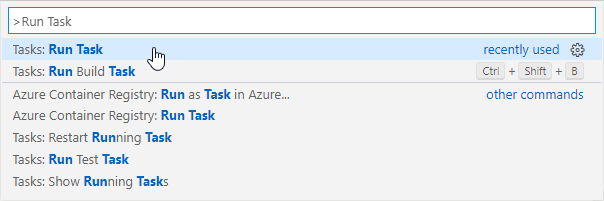
    I recommend working with Visual Studio Code. Support for .NET is great and it is highly configurable. The library project contains a folder “.vscode” with a “tasks.json” file. This file contains a single build definition. The definition object in the array “tasks” can be copied and modified to support different task types like “test”, “publish” and “pack” directly from Visual Studio Code. They can be run by pressing [Crtl]+[Shift]+[P] and selecting the following:

    A defined task can the be selected and is executed in the terminal:

    I hope this script helps to create projects. Writing the correct pipeline definitions and configs took me some time to learn. Now the projects are easily created.

  • AllInOne DevOps solution

    “Learning” for me means “practicing”. That’s why I started initializing every single small project with a Git repository, setting up a simple build pipeline and exporting artifacts to a central repository and I do this for Java projects (Gradle, Maven) in the same manner as for .NET projects (dotnet, NuGet). One might ask now: Why not just build the project and copy the output? This method is usable when it is only one project worked on by one developer for example when someone wants to try out some stuff, wants to learn project specifics or it is just a small thing to code (well, even then it is better to setup the tools because if the project grows you have everything ready for a big team). But as soon as there are more developers working on a project it is necessary to use collaboration and automation tools. That’s why I practice setting up the build environments with every new project because then it is routine and not a burden to do.

    What is the goal of this article? Let me start with the non-goal: I don’t want to provide a “Click here, then there, then fill this field and click Install.” tutorial. I want to share my experience, provide links to the tools I use and what to do with them and show the outcome. Most of the knowledge needed for this is generic: Setting up a SQL server is not specific to the usage in Azure DevOps and neither is setting up Windows 10. There are a lot of tutorials out there and I don’t have to reinvent the wheel here. I want to show that setting up these tools in the shown order leads to a running DevOps server that can save a lot of time and improve code quality and team collaboration.

    So, what is this setup for? Copying output manually can, as mentioned, be done for one project, maybe two and maybe also up to 10. But then this becomes annoying, confusing and hard to manage. As soon as I work on many projects I just want to commit and push my stuff and the rest is done by the build environment. And that is what this setup is about. Let’s start with the preconditions and prerequisites. I really use a power machine for this task:

    • HP Compaq 8200 Elite (initially bought 2012)
    • Intel Core i5-2500 quad core CPU (Yes, “Sandy Bridge” generation)
    • 16 GB DDR3 memory
    • 500GB Crucial SATA-SSD

    So, as you can see, you really need top of the line, high performance hardware 😉 No not really. What I want to show here is, that a small, old office computer does the job for learning the stuff.

    On the software side I use the bundled operating system and some other tools and programs. Don’t worry, they are all free of charge:

    These are all the things you need. Really.

    What are the limitations? First of all: You can’t use these tools for big business work loads and environments because they have hardware and software limitations. It’s more than enough to learn, practice and implement small projects but as soon as the requirements rise these limitations prevent you from using the tools in a large environment. The good thing is that the learned skills can be applied directly to big environments because the tools are the same and are handled the same way.

    The setup is divided into a few steps to make it easier. I start with a blank machine: No OS, no software and an empty drive:

    1. Install Windows 10 Pro. You can get it from here. It should already be activated if it was installed beforehand on the computer and the computer is connected to the internet.
    2. Download and install SQL Server 2019 Express.
      It is required for Azure DevOps and can also be used for development databases. I recommend a local setup with “sa” user.
    3. Download and install the latest Azure DevOps setup. I recommend also a local installation with http only. Setting up a SSL PKI and configuring IIS would be to much and does not serve the purpose here.
    4. Download and install Oracle VirtualBox and the extension pack.
    5. Setup one or many build agents (Windows agents can be directly set up on the machine, Linux agents can run in VirtualBox instances). Builds are only running on agents, not the DevOps server itself.

    As soon as these five steps are done the build server can be used for different project types. Just to name a few:

    • Java projects
      • Can be build on Windows and Linux build agent.
      • Supports different frameworks (JavaEE, Spring, Vaadin, …)
      • Supports build systems like Gradle, Maven and Ant.
    • .NET core
      • Builds all kinds of projects as long as the tools are installed on the build agents.
      • Has native support for .NET core tasks.
      • Easy usage of private NuGet repository.
    • Plain tasks with scripts
      • Supports different script languages like PowerShell and Bash.
      • Deployment with ssh.
    • JavaScript
      • Supports common JavaScript frameworks.

    I don’t want to go too much into detail here because there are tons of tutorials on the internet and the setup itself is pretty much self explanatory and supports the user with assistants.

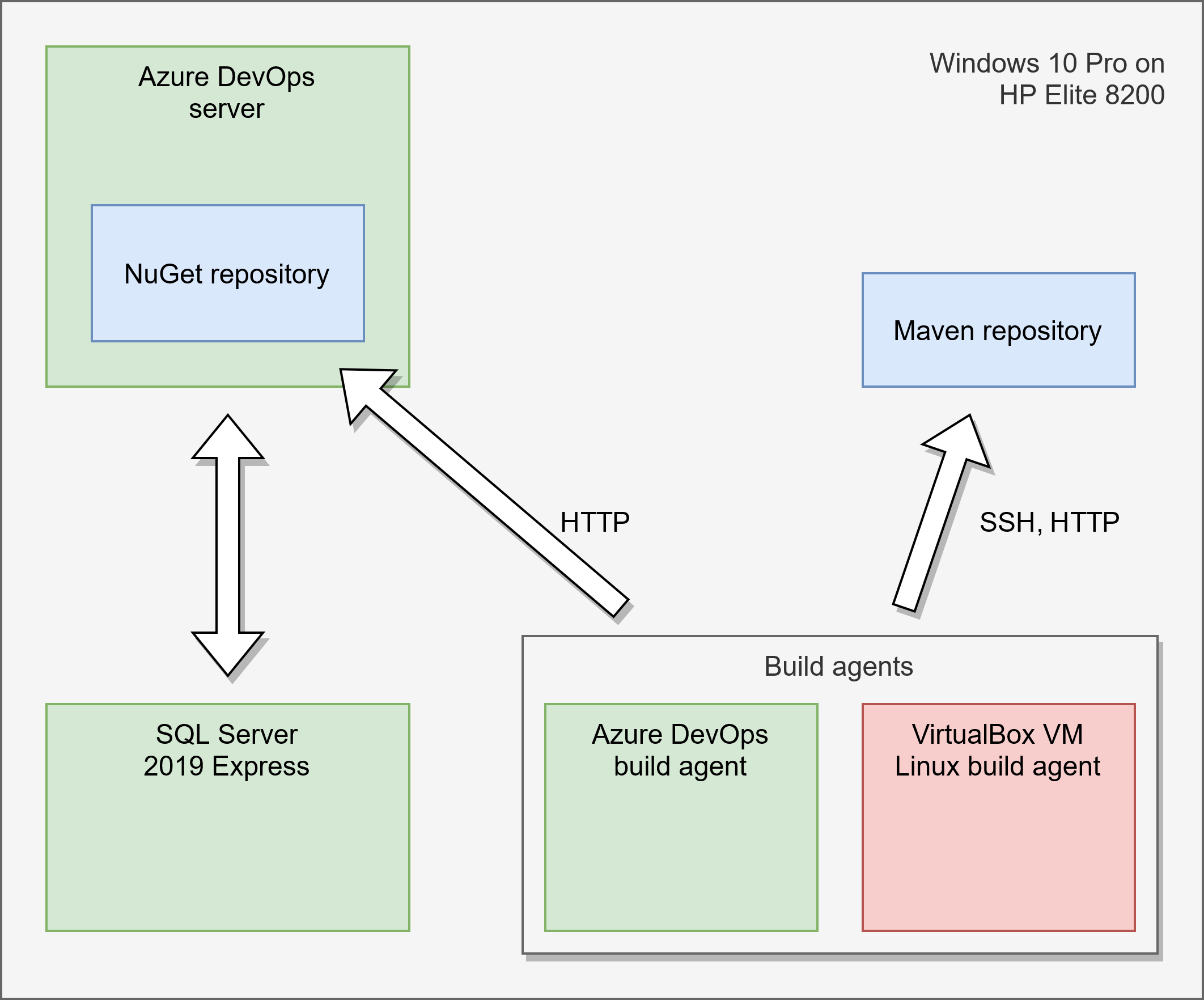
    The following diagram shows the architecture. The only difference to my setup is, that my Maven repository is externalized and is not running on the DevOps server. It is optional anyway and used for Java library distribution. So if one is not building Java projects it is not required.
  • Knowledge has to be where I am

    Where am I? In a project, in a code repository, deep down in the code or maybe on a bash shell on a remote Linux server. And I want the knowledge I need to work to be accessible from where I am. In this article I will show a few sources of knowledge that came in quite handy for me.

    Markdown

    I am in a code repository checking out a project that uses a build system I am not familiar with and a framework I have not yet worked with.

    Thank god the developer provides a README.md file in the repository: A well formatted document that highlights the commands I need to checkout and build the project. Direct links to frameworks and dependencies that I can download and install and after 10 minutes I have set up the project, created a branch and started coding.

    No waiting for colleagues, no interrupting others, no frustration. It just works.

    Manpages

    I am on a server, setting up a software I don’t know yet using tools I am not familiar with.

    Thank god Linux has manpages that describe the syntax, available parameters and general usage of the tools.

    But wait, there’s not only Linux one could say. True. PowerShell fortunately also has similar pages.

    And what if I am using a third party software? At this point the DevOps principle comes in handy: Just copy the software to the directory and start the application or go the extra mile, set up a private mirror, create packages, provide manual pages and use the deployment lifecycle to update the tools. Of course this is more effort but automated build tools can do a lot of the work automated and when the team grows this techniques are of inestimable value.

    Wiki

    I’m in a log file and the log gives me error codes.

    Thank god the company has a wiki where these codes are described. I just open it up, paste the code into the search field and the wiki takes me directly to the description and troubleshooting guide.